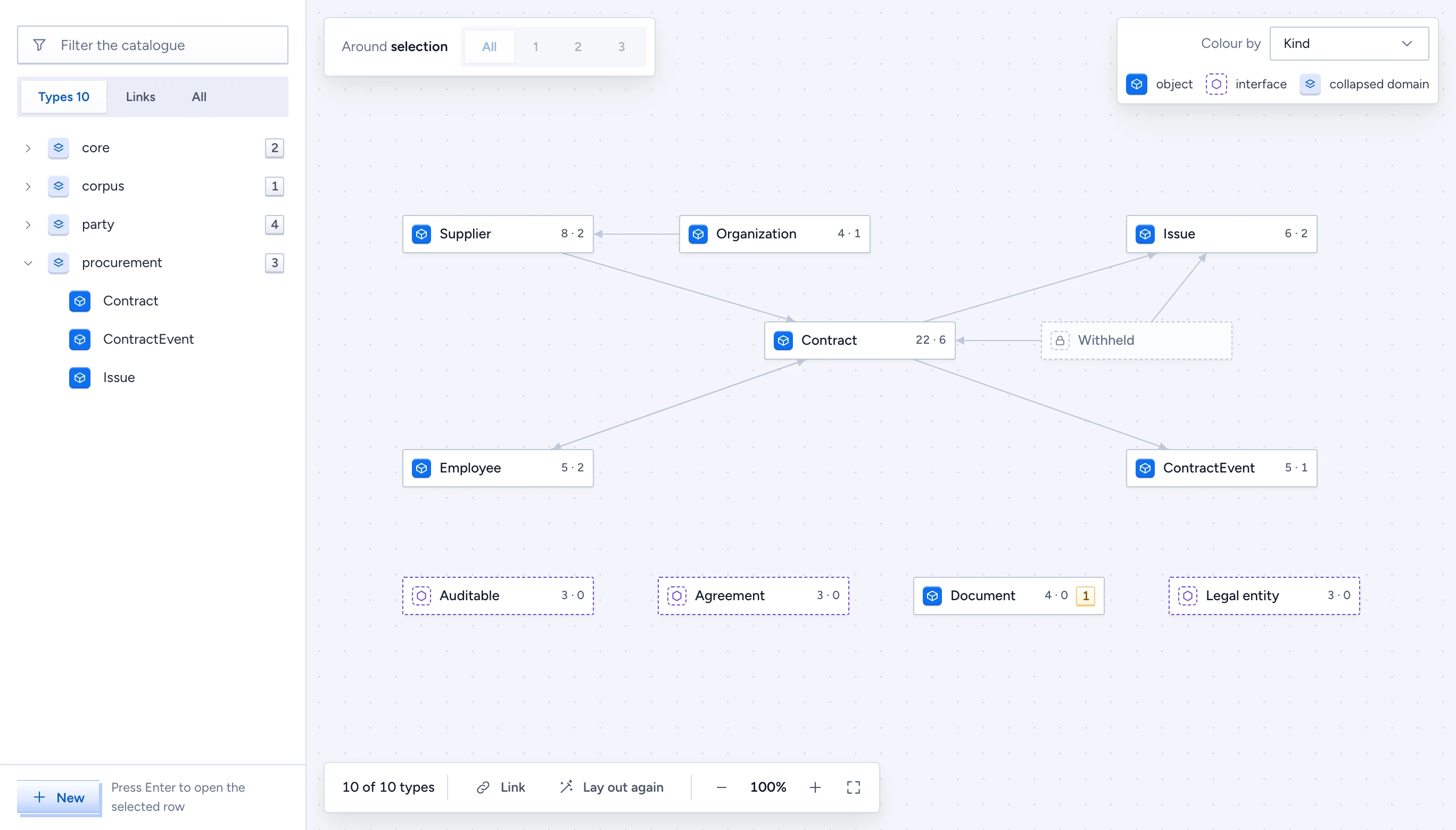
The designer opens on the ontology as a graph of the types you may see. The catalogue on the left lists them by domain, the graph in the middle shows how they link, and the inspector on the right counts what hangs off the one you select. Exploring changes nothing in the model; moving a pill only changes the saved layout. On your first visit a short note above the graph says what the boxes mean and where edits go; Got it removes it.
Find a type
- Type in Filter the catalogue to match a name, title or synonym. The tabs switch between Types (by domain), Links (by domain) and All (every element by kind).
- Press Cmd K (Ctrl K on Windows) to search the whole package: types, links and then the other files, with Types, Policies and Actions facets. Opening a result selects it and centres the graph on it.
- Click a pill on the graph or a row in the catalogue. The two stay in step.
Search only finds what is deployed to you. A type outside your segments returns nothing, exactly like a type that doesn't exist.
Read the graph
Each pill is a type: a blue cube for an object, a dashed hexagon for an interface. Zoomed in, the two numbers on a pill count its properties and links (Contract 22 · 6), and a red or amber badge counts its errors or warnings. Click the badge to filter Problems to that type. A package with no saved positions shows grey placeholder pills while its first layout runs, then opens at the result; Cancel layout stays available. Zoom out and pills become dots, and further out one circle per domain. Click a circle to zoom into its domain; dragging from one moves the map without zooming. A graph of more than 40 types also shows a minimap in the bottom left; click or drag in it to move around.
Select a type and its links turn blue; with eight neighbours or fewer they carry labels. The inspector shows two rows of counts, Shape (properties, links, actions) and In use (objects, sources, dependents), with Open editor and Centre graph here.
Narrow what you see
- Around selection: pick 1, 2 or 3 to keep the selected type's neighbourhood at that depth, or All.
- Filters in the toolbar: kind, status, domain, segment, owner and Has problems. Matches stay, their direct neighbours dim and the rest hide. The count at the bottom reads "2 of 10 types".
- Colour by, the dropdown at the top right: Kind is the default. Domain, Status, Health, Segment, Marking and Classification recolour the tiles, each with a legend. Classification takes the strictest level of the type and its properties.
- Collapse folds the selected type's domain into one node; Enter or a double click opens it again.
Links to types you can't see
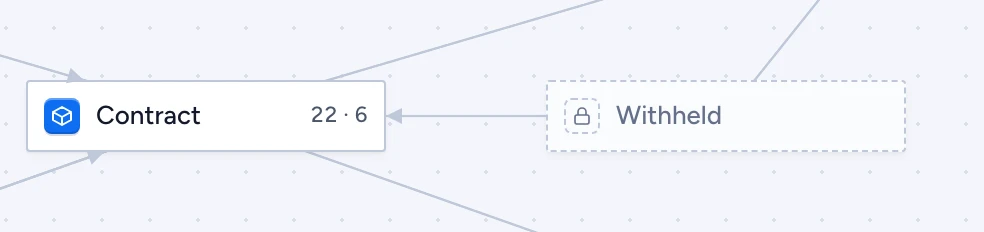
When a link leads to a type outside your segments, the far end is a dashed Withheld pill and the inspector lists it as "1 restricted object". The hidden type's name never reaches your browser. The segment decides whether you see the stub at all: under crossSegmentLinks: hide the link is left out.
Arrange the layout
Drag a pill to move it. It stays pinned where you drop it, and the position is saved to the package's Layout file. Lay out again reruns the automatic layout around the pinned pills; Cancel layout, or a layout that runs out of time, keeps the old positions. Each move is an undo step (Cmd Z).
Moving a type needs edit rights on it. Layout files are left out of the package's content hash, so rearranging the graph never counts as a model change.
Use the keyboard
The graph is one tab stop. Tab and the arrow keys move the selection, Enter opens the type's editor, Shift and an arrow moves the type, P shows its problems, L starts a link, and +, - and 0 zoom and fit. With WebGL turned off the graph can't draw, and the catalogue and inspector carry on working.