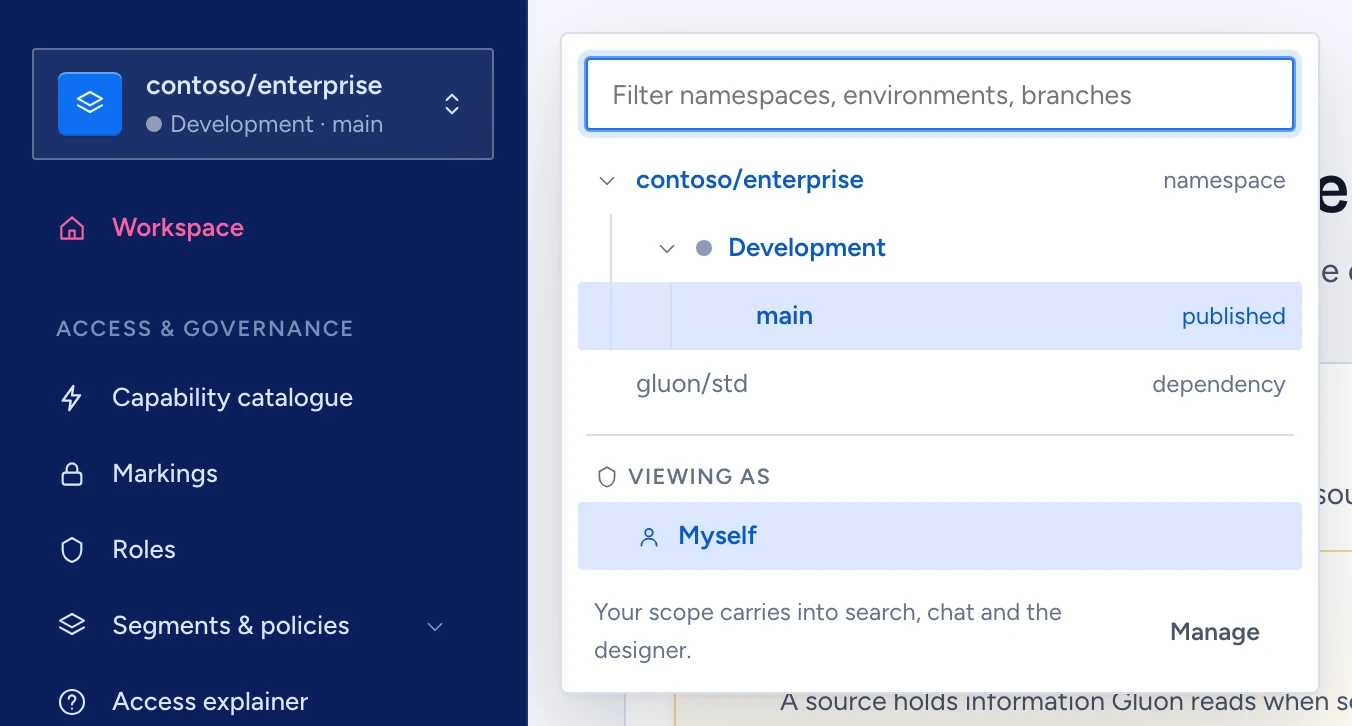
Your workspace is three choices: a namespace, an environment and a branch. Gluon keeps them per person on the server, so the namespace you pick in the designer is the one chat and the admin console open next time.
Open the picker
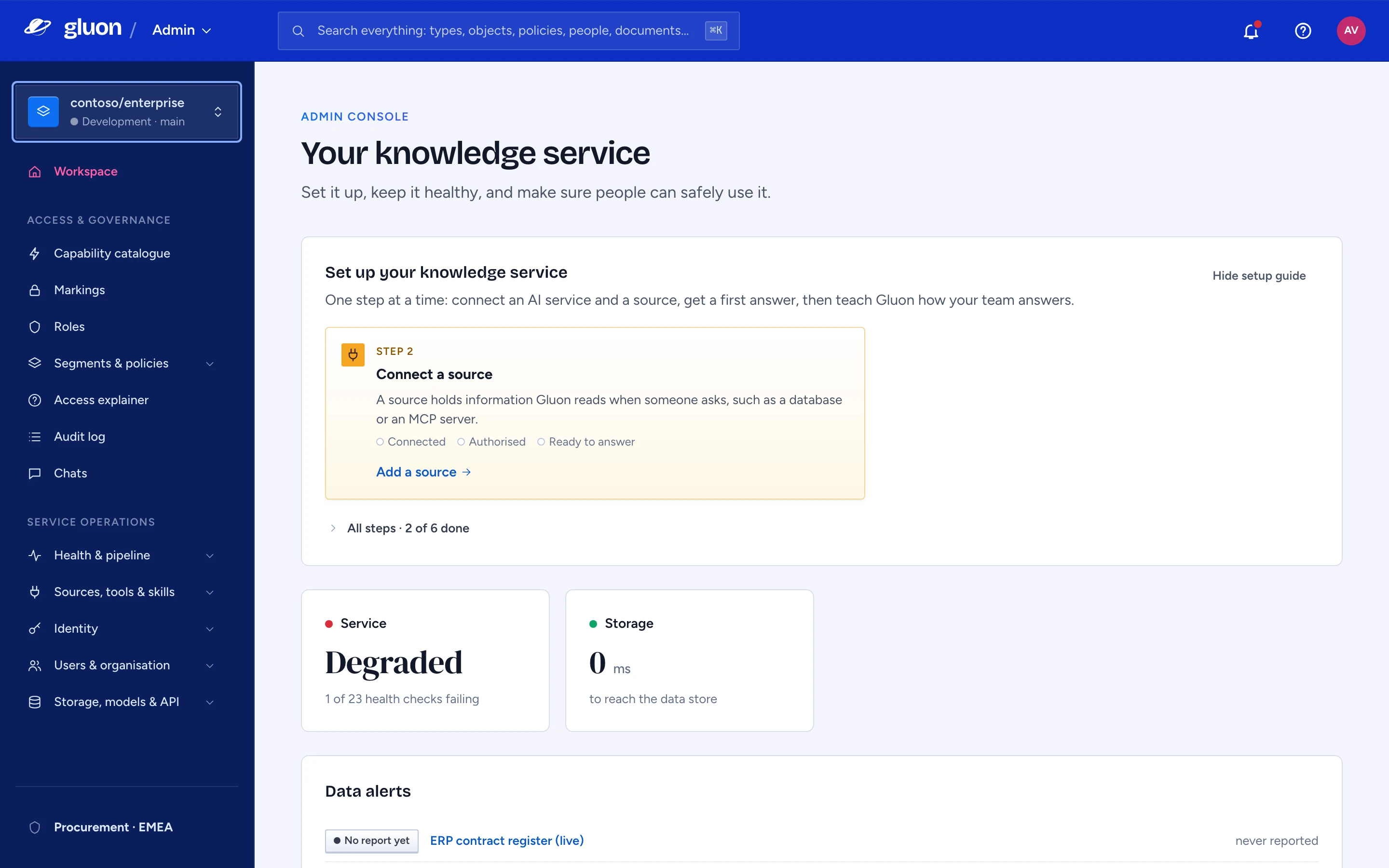
The workspace box sits at the top of the navigation in chat, the designer and the console. It shows the namespace in bold and, under it, the environment and branch, such as "Development · main". The dot is green for Production and grey for every other environment.
- Click the box. The panel lists your namespaces, with the current one opened to its environments and branches.
- Type in Filter namespaces, environments, branches to narrow a long list.
- Pick a row. The panel closes and applies your choice.
Switch namespace
A namespace is a separate model with its own proposals, versions, conversations, action runs and audit records. Pick another one and the app reloads once, so every screen reads from the new namespace. Branch and Viewing as go back to main and Myself.
You only see namespaces you have access to: one with a segment deployed to you, or one where you hold an ontology-wide role. The rest are left off the list, and a link that names one of them opens your default namespace. Rows marked dependency, such as gluon/std, are packages the model imports; you can't pick them.
Switch environment
Production and the other environments run on separate infrastructure. Picking another environment opens that environment's own app at its own address, and you carry on there.
Switch between apps
The top bar names the app you're in beside the Gluon wordmark, such as gluon / Admin. Select the name to open Chat, the designer or the admin console. The list shows only the apps your roles allow: everyone has Chat, the designer needs a role that proposes, edits, reviews or publishes, and the console needs one that reads, deploys, reviews or manages security. With only Chat, the name has no menu.
The three apps share one address: Chat at /, the designer at /designer/ and the admin console at /admin/. One sign-in covers all three, so switching never asks you to sign in again. When you do sign in, from any app, Gluon brings you back to the page you started from.
Pick a branch in the designer
Under the current environment you'll find main, the published model, and the open proposals. In the designer, main is read-only; pick a proposal to edit. The designer opens on the branch you picked last time, and its search follows the branch.
Chat has no branch choice. It always answers from the version served to you.
See the model as another group
Anyone with the manage-security permission, usually a security officer, gets a Viewing as section in the designer's picker. Pick a department, team or group and the designer shows exactly what that principal may see. The role you view the console as sits at the bottom of the sidebar beside a shield; select it to open this part of the picker.
- Viewing as is read-only and grants nothing.
- Each choice, refusals included, is written to the audit log.
- Chat and the console always show Myself.
- Exit view as in the designer's bar ends it.