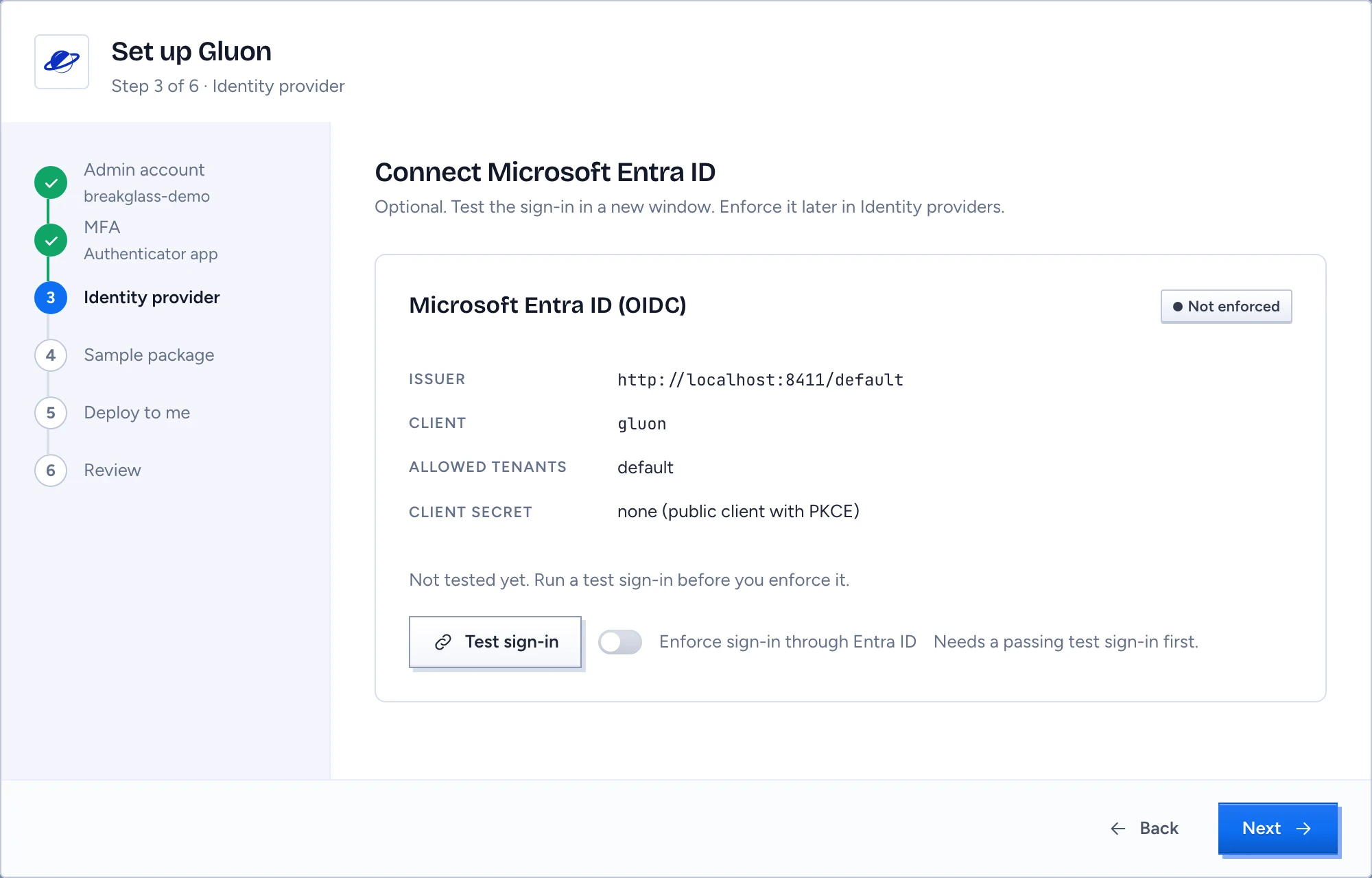
A fresh install has no users, so the admin console shows the Set up Gluon wizard to anyone who opens it until setup is done. It has six steps: Admin account, MFA, Identity provider, Sample package, Deploy to me and Review. Only the first two are required.
Get a setup token
Someone could reach the console before you do, so the wizard asks for a token only the server can print. On the server, run:
gluon setup-token
The token is valid for 24 hours, and a new one replaces the old. Once the admin account has MFA, the token stops working and the command refuses to print another.
Create your admin account
The first admin is a local account outside SSO, so you can still sign in the day your directory is down. The console calls it a break-glass account.
- Paste the token into Setup token.
- Keep or change the Username (breakglass-1 by default).
- Type a password of at least 14 characters in Password and Repeat the password, then click Next.
Turn on MFA
- Scan the QR code with an authenticator app, or type the Key into it. On a phone, tap "open it in the authenticator app" and skip the typing.
- Type the six-digit Code it shows and continue.
You are now signed in as the admin, and the wizard says "You can finish setup now". The account holds the roles that manage security, publish and deploy on the served package, so it can run the console even while the directory is down. Every sign-in with it notifies every security officer.
Connect Microsoft Entra ID
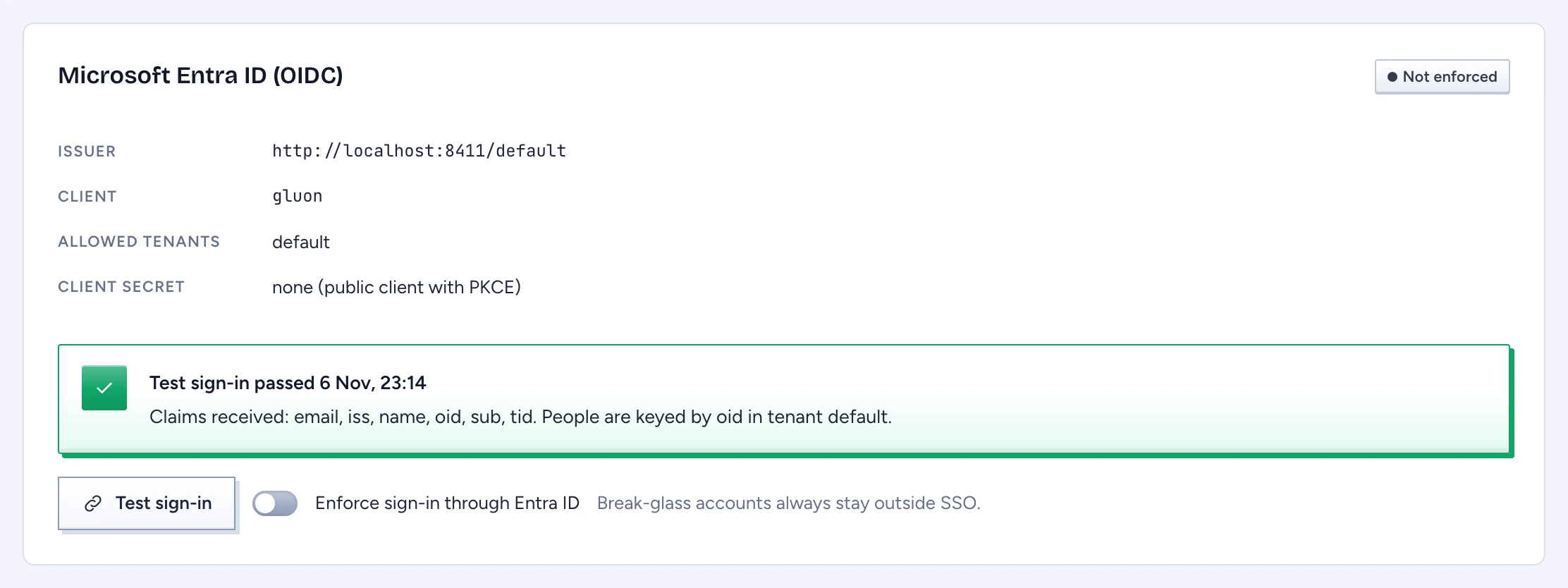
This step is optional now. The panel shows the Issuer, Client, Allowed tenants and Client secret your server is configured with.
- Click Test sign-in. A new window runs a real sign-in.
- When it passes, the panel lists the claims it received and how people are keyed, for example "People are keyed by oid in tenant default".
- Enforce sign-in through Entra ID stays off until a test has passed. Switch it on here, or later under Identity providers in the console.
Break-glass accounts always stay outside SSO, enforced or not. A test from a tenant that is missing from the allow-list fails with "not on the allow-list".
Try the sample
Both sample steps are optional.
- Load the sample package imports contoso, a procurement model with contracts, suppliers and issues, as main. If an ontology is already loaded, you see "An ontology is already loaded" and nothing changes.
- Deploy the sample to me publishes contoso as a version, deploys it to a sample group with you in it and indexes its sample records, so your first question in chat has something to cite. It also makes you owner of the sample (its ontology-owner role), so you can try a change end to end: edit a type in the designer, approve and merge the draft, publish a version and deploy it. Removing the sample takes the role back.
Remove the sample before you connect real data. Its starter policy covers every Contract and Supplier record in the environment, so a real connector that indexes contracts while the sample is live makes them readable to everyone the sample reaches. Remove the sample data from Connectors and retire the gluon-sample deployment first.
Finish
Review lists what you did, with Edit beside each optional step. Finish setup takes you into the signed-in console. The wizard has no close button and can't be skipped.
After setup
The console opens on Workspace, headed Your knowledge service. Until the worker's first health probe has run, the Service card reads Waiting with the number of checks that have no data yet. Its first panel, Set up your knowledge service, leads with one step: the first one not done yet, with a link straight to the place where you do it. All steps (closed at first) lists the six steps in order and, below them, the setup a rollout needs later. A step is done only when it shows a result, not when something merely exists. A finished step shows a check and "done":
- Connect an AI service: done when an AI connection answered its test and an approved Model names it, so chat has something to answer with, or when a package Model or a model route on Admin › Models already serves chat through the server's AI gateway. Add an AI connection opens AI connections.
- Connect a source: three dots show how far your source is (connected, authorised, ready to answer), and the text and link follow its real next action, such as Add to a tool pack. Ready, it names whose answers it is ready for, and the source you are setting up next (the newest one not ready yet) follows with its own next action. The step is done when a source is ready to answer. See Connect a database or an MCP server.
- Get a first answer: done once you have a conversation in chat. Ask a question opens chat. With the sample deployed to you, the start page offers questions that answer from its supplier records, such as "Which supplier is based in DE?".
- Use a skill: done when an answer used a skill in the last 7 days, not when a skill exists. See Write and test skills.
- Review memory: done when memory keeps items, with how many are kept and how many are outdated. See Browse, correct and wipe memory.
- Shape the answers: done when a skill that shapes answers (a table, a brief, a reply) was used in the last 7 days.
More setup, when you are ready: Explore your starter knowledge (Explore the starter model opens the designer on contoso; without the sample it reads Describe the knowledge your team needs), Set clear access boundaries (opens Segments & policies) and Let your team sign in (opens Identity providers).
Each of these pages is reachable from the start. A page whose first step is missing says so and offers that one step, such as Add a source on Tools before any source exists.
Hide setup guide removes the panel for good in this browser.