A source holds information. A tool reads or changes it. A saved query is a tool for a database. A skill gives instructions for a kind of question. A tool pack lists the tools a capability may call.
Here a source is a system Gluon reads when someone asks: a PostgreSQL, MySQL or SQL Server database, or an MCP server. Gluon only reads. A Files source is the exception: it holds documents you upload to Gluon itself (see Keep files in Gluon). What a source is for stays a Source in the ontology and changes by proposal; how Gluon reaches it (the address, the user and the secret) is a platform setting you manage here.
Before you start
- You need the platform administrator role. A security officer can read this page.
- For a database, ask for a read-only user. On SQL Server the login itself must be read-only, because SQL Server has no read-only transactions.
- For an MCP server in the cloud, have its https endpoint and its token.
Add a source
- Open Sources, tools & skills > Sources and click Add a source.
- Pick the type: PostgreSQL, MySQL, SQL Server or MCP server, then Next.
- Fill in the fields. To save typing, paste a connection URL into Paste a connection URL: the browser splits it into host, port, database, user and password, and empties the field. The URL itself is never sent or kept.
- Type a Name, such as
erp. ASourcein the ontology names this connection, so choose it with care. - Click Connect and test. Gluon saves the connection, sends the password to the key service once, and tests it from the server. The page never shows the password again, only its last four characters.
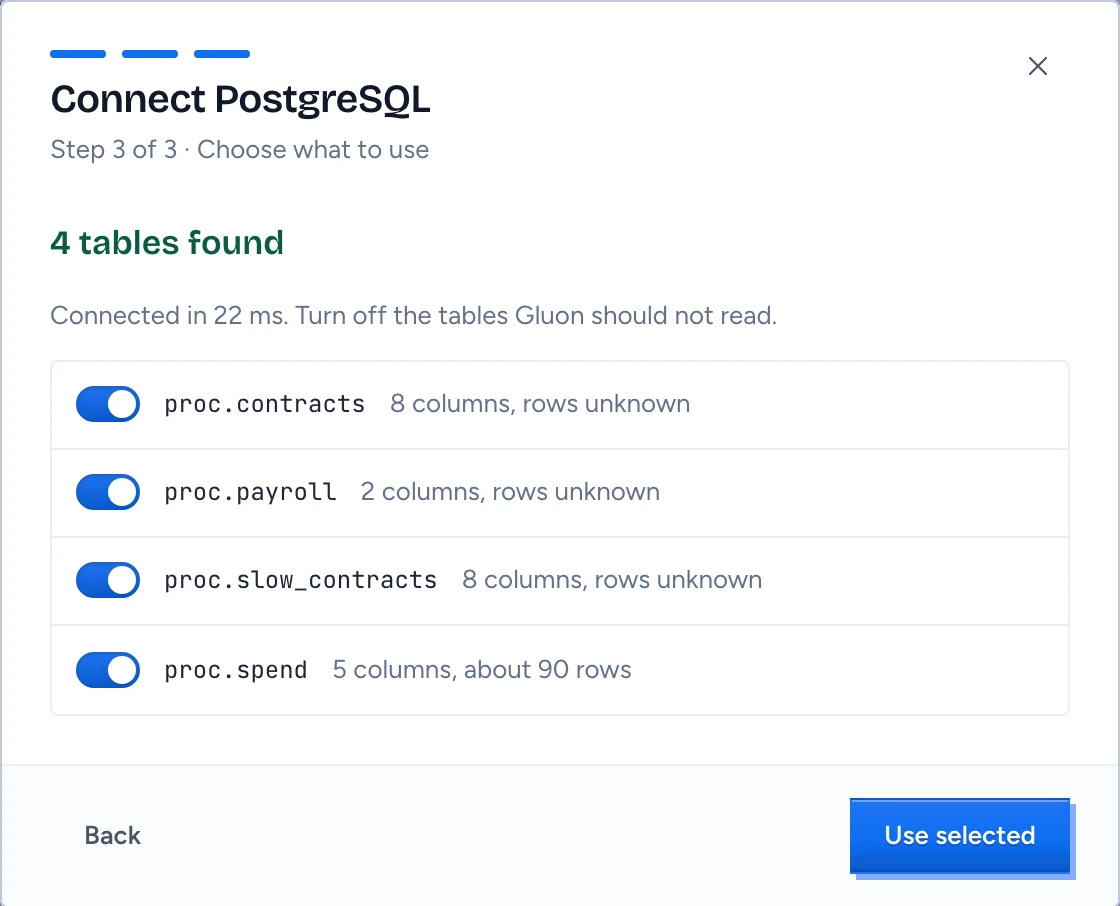
- The last step lists what the test found: tables with their columns and about how many rows, or tools. A table the database has no statistics for yet says "rows unknown". Tables start on. Tools that say they only read start on; a tool that does not say it, marked Needs review, stays off, and a tool that writes is locked off.
- Click Use selected.
If the test fails, you see the source's own error (with any credential removed) and the connection is saved without a passing test. Change the fields and click Change and test again, or close and use Test on the row later.
Read the three states
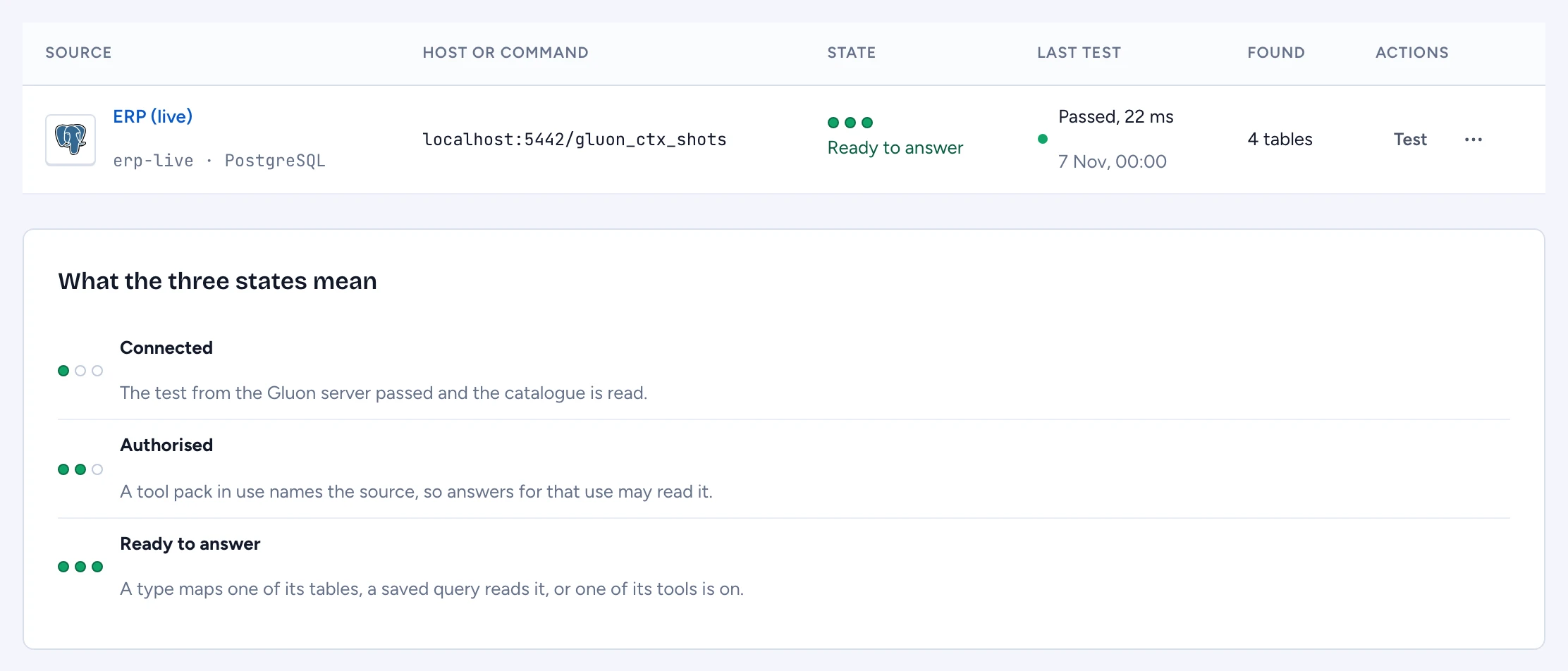
Every source shows three dots and one next action:
- Connected: the test passed and the catalogue is read. Next: Add to a tool pack. The designer opens and asks which Capability may use the source; it adds the source's tools to that tool pack in your draft.
- Authorised: a tool pack in use names the source, so answers for that use may read it. Next: Map a table or Enable a tool. Map a table opens the designer on the first table no type maps yet and asks which object type its records belong to; it adds the mapping to that type in your draft, and you fill in which column feeds which property.
- Ready to answer: a type maps one of its tables, a saved query reads it, or one of its tools is on.
On a server in dev mode, a line under the table names one more source, fixtures: the sample package's test data that Gluon indexes for trying it out. It has no connection, is never on a production server, and answers that use its records cite it.
After each step in the designer, a message offers Back to Sources, where the source shows its new state. The workspace home shows the source you are setting up in the same way, and its first step is done only when a source is ready to answer.
Change, rotate or remove
The row menu has Sync the catalogue (read the tables or tools again; new tools start off), Edit, Replace secret, Disable and Delete. A source that a deployed Source names cannot be deleted: the console lists those Sources and offers Disable instead. A disabled source is not called by any answer.
Keep files in Gluon
A Files source holds documents you upload to Gluon itself: PDF, Word (.docx), PowerPoint (.pptx), text (.txt) and Markdown (.md). Gluon reaches nothing, so there is no host, no test and no secret.
- Click Add a source, pick Files, then Next.
- Type a Name, such as
handbook, and a title, then click Create and Open it. - Until a
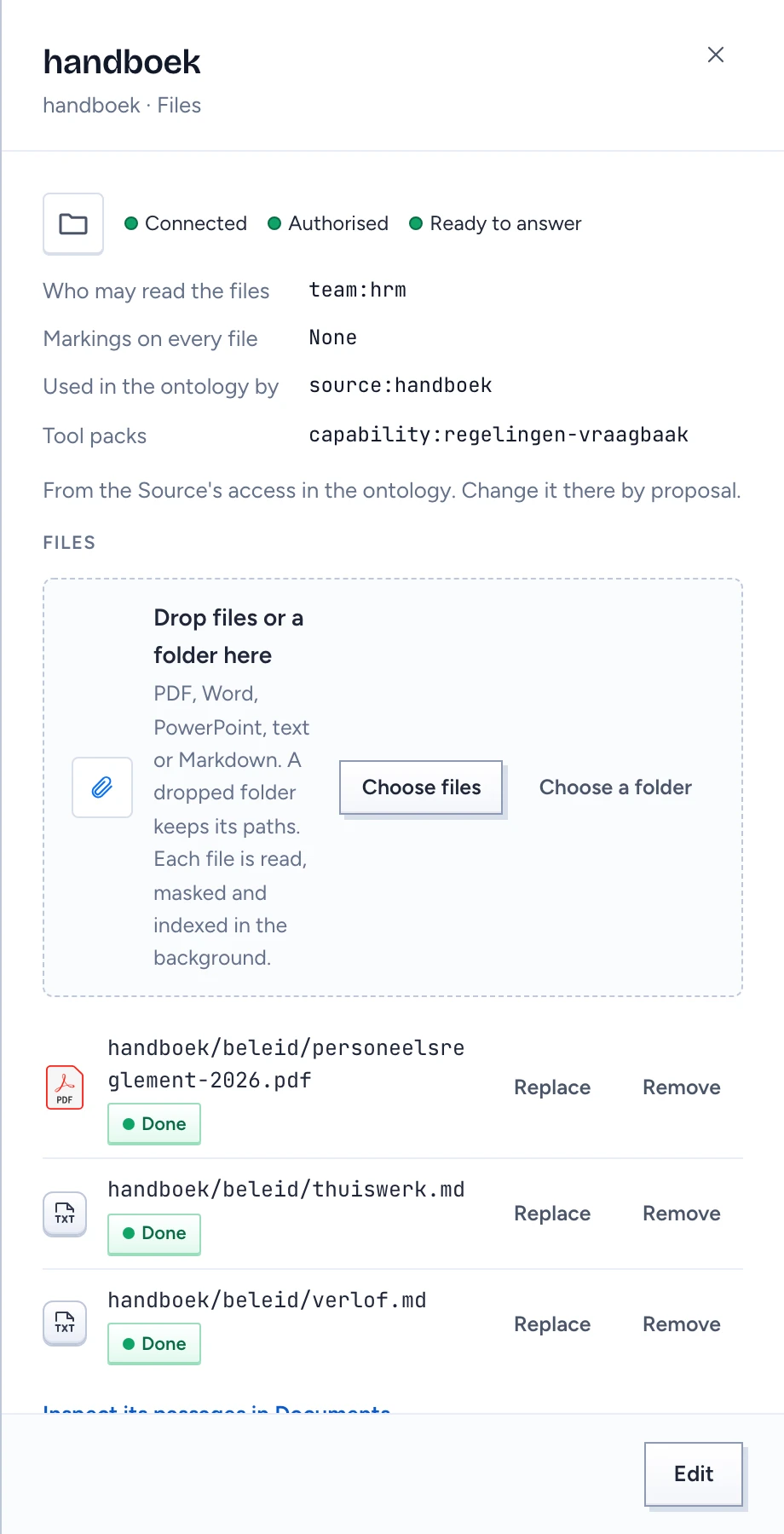
Sourcein the ontology names the connection, its page shows the YAML to propose (connector: "gluon:files@1") and the drop zone stays off. Open the designer, add the Source to your draft and publish it through review. Itsaccesssays which markings and which readers every file carries; the page shows them under Who may read the files and Markings on every file. - Drop files or a whole folder on the drop zone, or use Choose files or Choose a folder. A folder keeps each file's path, such as
policies/leave.pdf. A file of another kind is named and not sent. - Each file is read in the background: Queued, then Parsing, then Done, or Failed with the reason. Gluon masks personal data in the passages as for any other document. The list shows every file you sent, also when the Source's
accessdoes not include you; its passages are read as you in Documents, so there you see only what you may read. Every time the list is opened, the audit log records who read it and which source, asadmin.source.files.
Replace sends a new file for the same document: answers keep citing the same document, now read from the new file. Remove asks first; answers stop citing the file at once, its passages and stored stages are deleted, and the deletion stays in the log. A file that is still being read cannot be replaced or removed yet. Inspect its passages in Documents opens the document inspector for this source.
See Review, try and enable tools for what happens next.