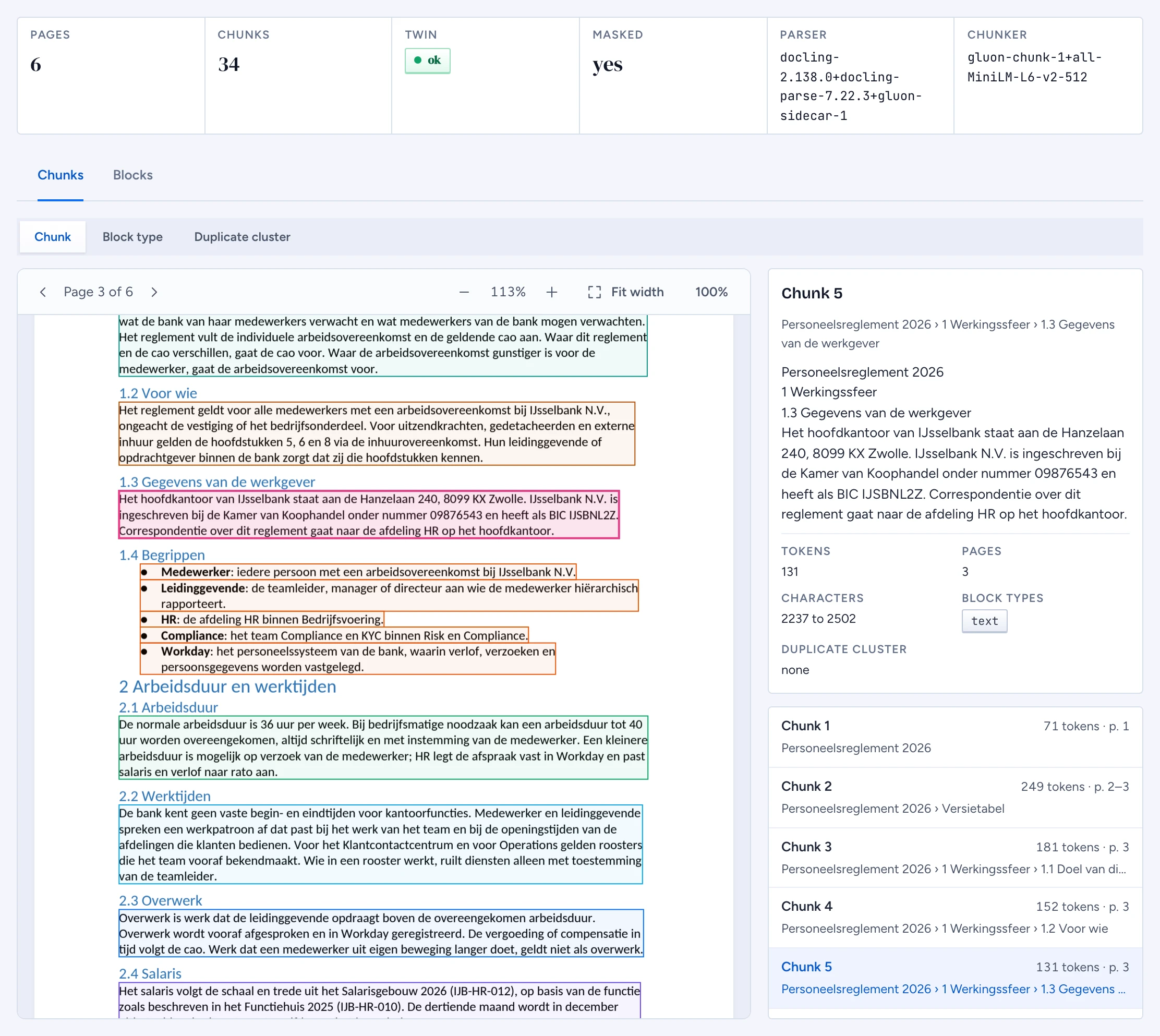
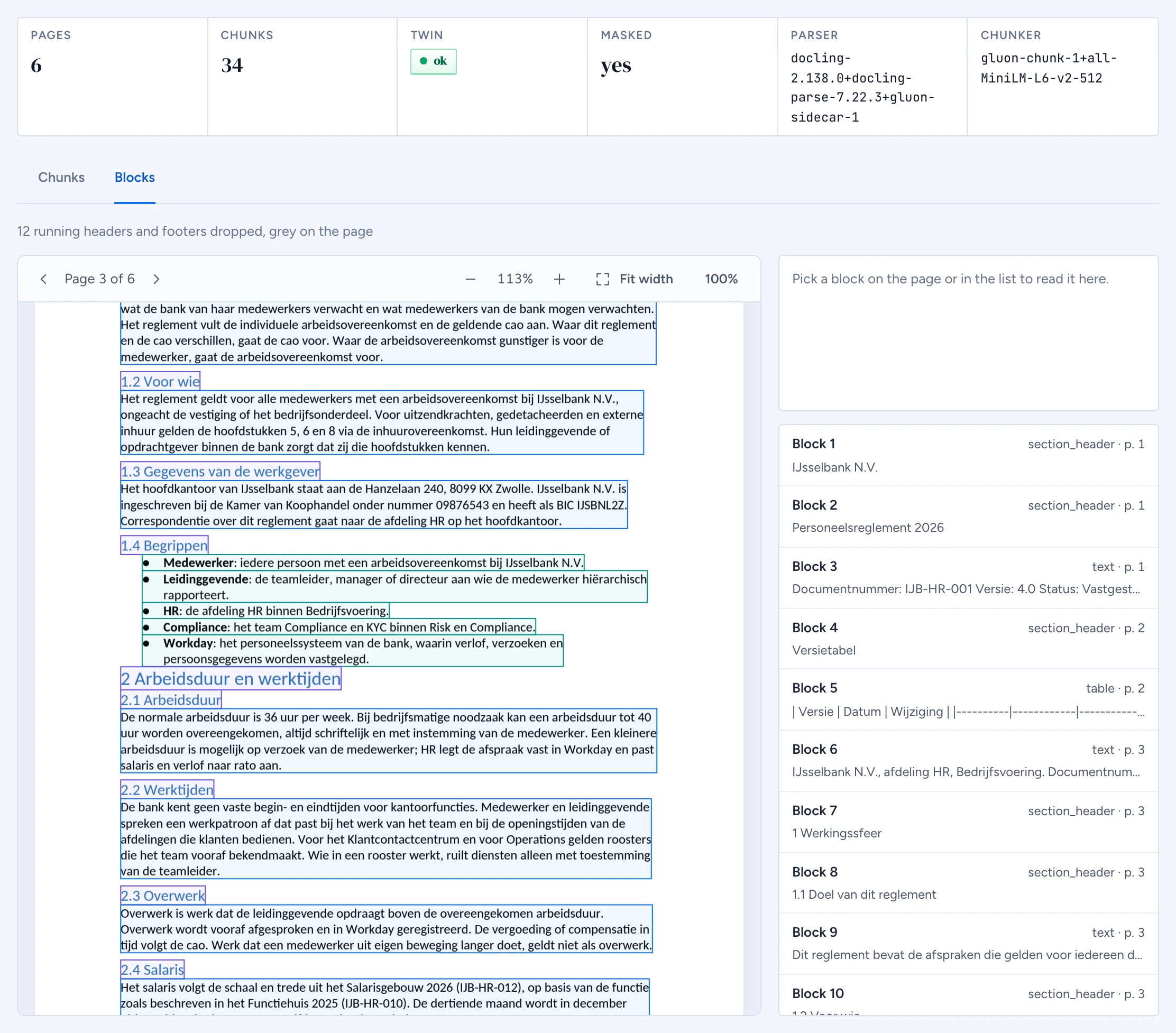
The document inspector shows a document as Gluon Ingest stored it: the PDF twin's pages with a hairline box around every chunk, a tab per stored stage, and the chunks in reading order. Use it to check that headings, tables and slides were chunked the way answers need them.
Before you start
- Open a document from Documents.
- Every read goes through the policy decision point in the admin channel. A document you may not read says withheld, never empty, and offers Request access. Text arrives masked from the server: unless you may reveal masked values you get the redacted twin, with black boxes over what was masked.
Read a chunk on its page
The strip at the top gives the document's pages, chunks, whether the twin was made, whether values were masked, and the parser and chunker versions.
On the Chunks tab, the pages are on the left and the chunk list on the right.
- Hover a box to see its section path, an excerpt, its tokens and pages.
- Click a box, or a row in the list, to select it. The other one follows, and Selected chunk shows its text, section path, tokens, pages, characters in the document text, block types and duplicate cluster.
- From the keyboard: Tab into the page area and again into the chunk layer, then use the arrow keys to walk the chunks and Enter to select one. + and - zoom.
Use Fit width, 100% and the zoom buttons to change the page size, and the page arrows to move between pages.
Colour chunks by a lens
Colour by changes what the box colour means:
- Chunk: each chunk its own colour, to see where one ends and the next begins.
- Block type: what each chunk holds, such as text, a table or a list.
- Duplicate cluster: chunks that are copies of each other share a colour; the rest are grey. The list names the cluster, for example
dup dup-7f3a.
See the parse blocks
The Blocks tab shows the parse stage: every block the parser found, boxed by type, with its label, level and text. Running headers, footers and page numbers that the clean stage moved out of the chunks are drawn grey; a line above the pages says how many were dropped.
Read a document whose twin failed
When the twin could not be made, a warning row says so and there is no page view. The chunks are still listed, from the native file, with section paths but no boxes.
A document that came as text, not as a file (from a connector that sends text, or the text route), has no twin at all: the strip says text only, there is no page view and no Blocks tab, and its chunks are listed without pages or boxes. That is no warning and nothing is withheld.
Other attention rows you may see:
- The page view is withheld from you: the document has masked values and no redacted twin, so only the masked chunks are listed.
- Chunks withheld from you: some chunks of this document are under markings or an ACL you do not meet. They are counted, never listed. When every chunk is withheld, the Chunks tab says so instead of listing them.
The designer opens the same inspector in a side sheet from a golden case's passage; see Write the golden set.