A merge changes main, and publishing freezes it. Publishing takes main as it stands, gives it a SemVer number, a content hash and a changelog, and stores it read-only. Deployments name a version, so a merged change reaches people only after you publish it and deploy that version. Publishing needs the publish permission.
Which number you get
Gluon compares main with the last published version and works out the smallest bump the change needs.
| Change | Examples | Bump |
|---|---|---|
| Cosmetic | title, description, display, synonyms | patch |
| Additive | new type, optional property, new link, relaxed constraint | minor |
| Breaking | remove or rename, retype, optional to required, tightened constraint, primary key change | major, plus a Migration |
Adding procurement.Warranty to 2.4.0, for example, makes 2.5.0.
Publish main
- Open Versions in the designer.
- Press Publish main.
- Leave Version empty to take the required bump over the last version, or type a higher SemVer number such as 3.0.0.
- Confirm with Publish.
The new version heads Published versions with the latest tag, its changelog, its content hash, who published it and when. Gluon writes the changelog for you from the titles of the merged proposals and a count of the changes, for example "Review inbox (inbox) · Changes: 1 added. Needs a minor version."
Gluon refuses to publish when:
- main has validation errors;
- nothing changed since the last version;
- the version already exists;
- the number you typed is below the required bump (
GLN-E601).
What a version guarantees
A published version never changes. Its files cannot be edited, replaced or deleted, and its hash stays the same for as long as it exists. Layouts sit outside the hash, so rearranging the canvas and merging that alone gives main the same hash, and publishing afterwards says nothing changed.
Compare two versions
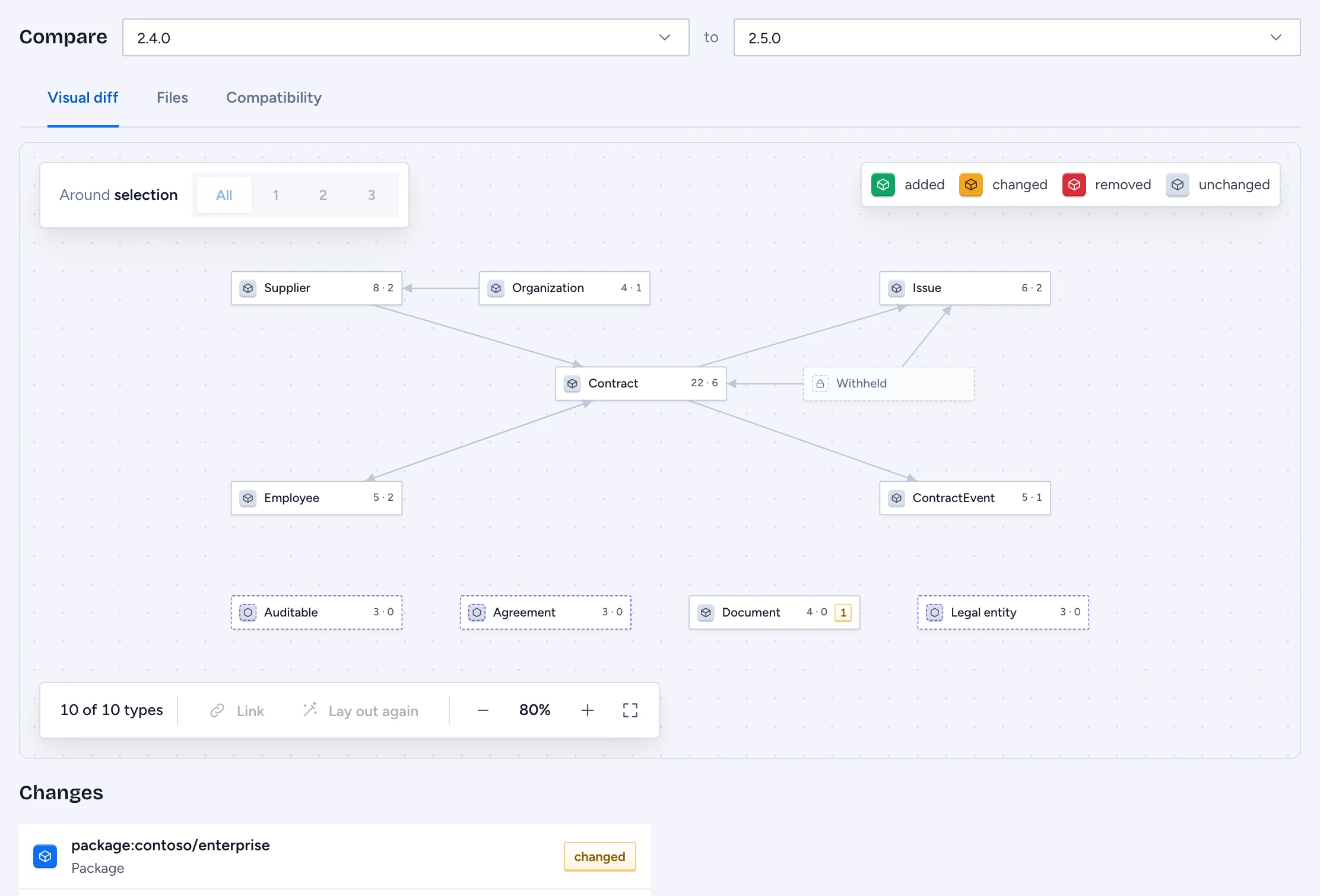
Press Compare on a row of the table, or choose a From version and a To version under Compare versions. Three tabs show the difference:
- Visual diff draws the canvas with added, changed, removed and unchanged types, and lists every change below it.
- Files shows the YAML diff per file.
- Compatibility gives the required bump, the breaking changes, access widening and the migration checks.
The canvas is drawn from the current package, so a type that exists only in the older version appears in the change list and is missing from the canvas.