Fleet report: every Mac running the assistant reports state to Gluon when it connects, when it installs a pack, and every 5 minutes after that. Contents: versions, permissions and switches. Screen content: never included. Device: native session the app signed in with. Person: that session's user. Refusal: a Mac cannot report for another device or person, and a browser session cannot report.
Read the fleet
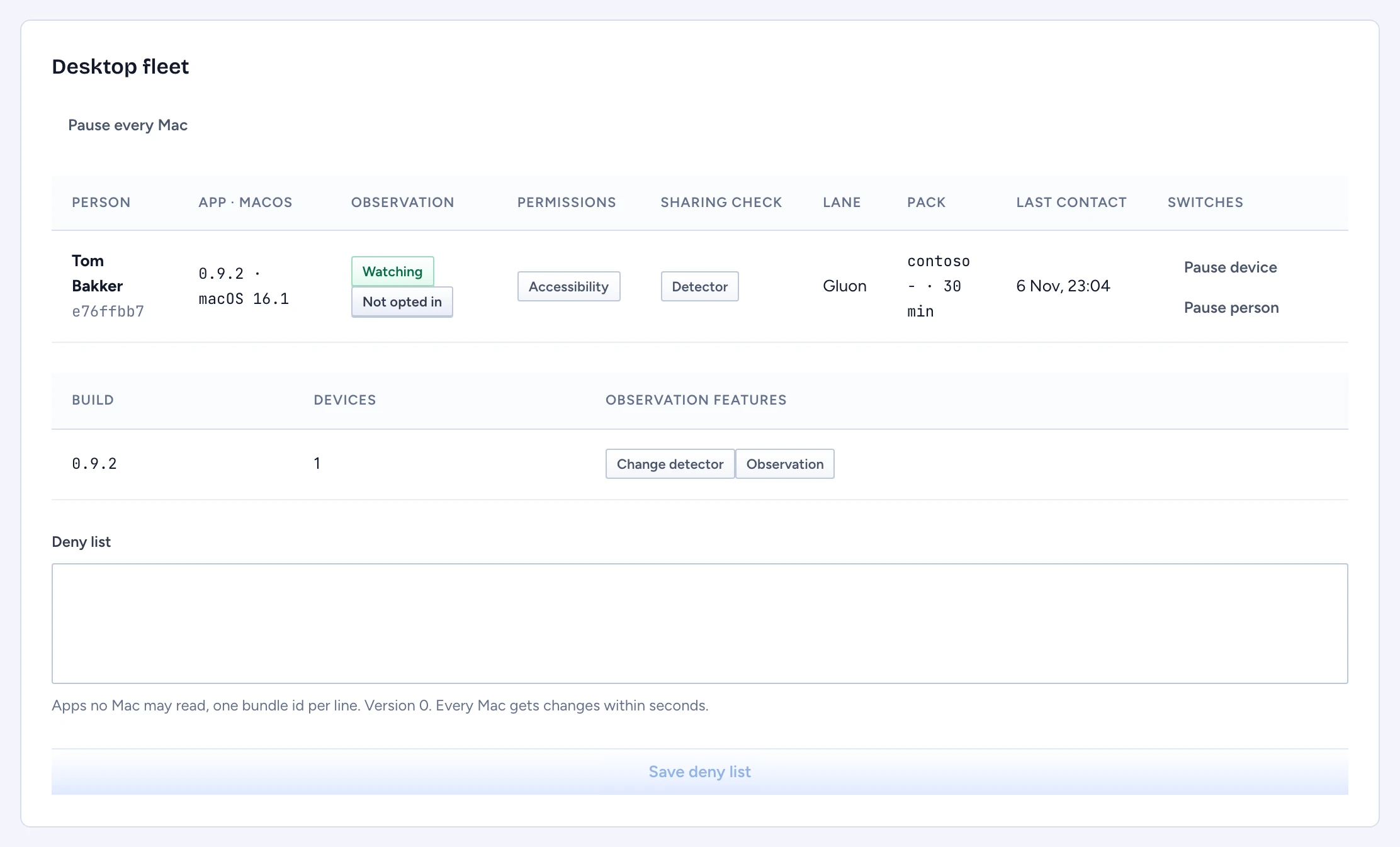
In the admin console, go to Storage, models & API › Channels and devices. The Channels table shows which Capabilities each channel offers; a channel with none refuses every request. Below it, Desktop fleet has one row per Mac:
| Column | Shows |
|---|---|
| Person | the person's name and the first 8 characters of the device id |
| App · macOS | the app build and the macOS version |
| Observation | Watching or Off, and Opted in or Not opted in |
| Permissions | Accessibility or No Accessibility, plus Screen Recording when granted |
| Sharing check | Detector, Running-app rule or Unavailable |
| Lane | Gluon for production; the dev lanes show as Dev: Jev or Dev: rule |
| Pack | the pack revision and its age |
| Last contact | when the Mac last reported; Stale after 7 days |
| Switches | the pause state and the pause buttons |
Look for No Accessibility (the person gets nothing until they grant it), a Sharing check of Unavailable (the Mac has no working check for screen sharing), a pack older than a day, and Stale devices. The Builds table counts devices per build and the observation features each build reports. Sessions, API tokens and MCP clients are listed per person under People.
Pause the assistant
You can pause one Mac, one person on every Mac, or every Mac.
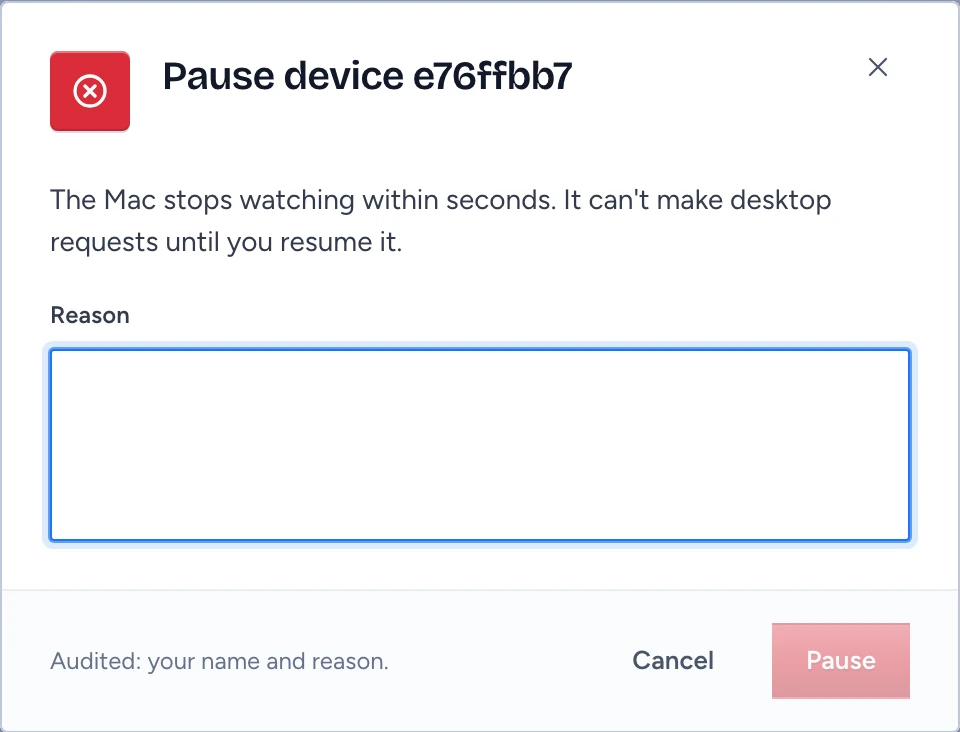
- Choose Pause device, Pause person or Pause every Mac.
- Enter a Reason. Pause stays disabled without one.
- Choose Pause. The pause is audited with your name and the reason.
The server checks for pauses every 2 seconds and tells each Mac on its next check. The Mac stops observing, and every desktop request is refused until you resume. The person sees "Assistant: Disabled" with your reason. The row shows Device paused or Person paused, and a pause of every Mac shows "The desktop assistant is switched off" above the table.
To undo it, choose Resume device, Resume person or Resume every Mac.
Keep apps off every Mac
The Deny list field takes bundle ids, one per line, such as a finance app your organisation never wants read. Choose Save deny list. Each save is a new version, and every Mac gets it on its next check and stops reading those apps straight away. Emptying the list is a new version too. Each person can add their own apps on their Mac as well; they can't remove yours.