Gluon Desktop: your own knowledge workspace on your Mac. First start: a three-step welcome guide. After that: Chat is the home screen. Navigation: Chat, Knowledge and Memory in the sidebar, your conversations and skills under them, Settings at the bottom left. State: the bottom bar. Nothing here needs a server; Account links one when you want it.
Follow the welcome guide
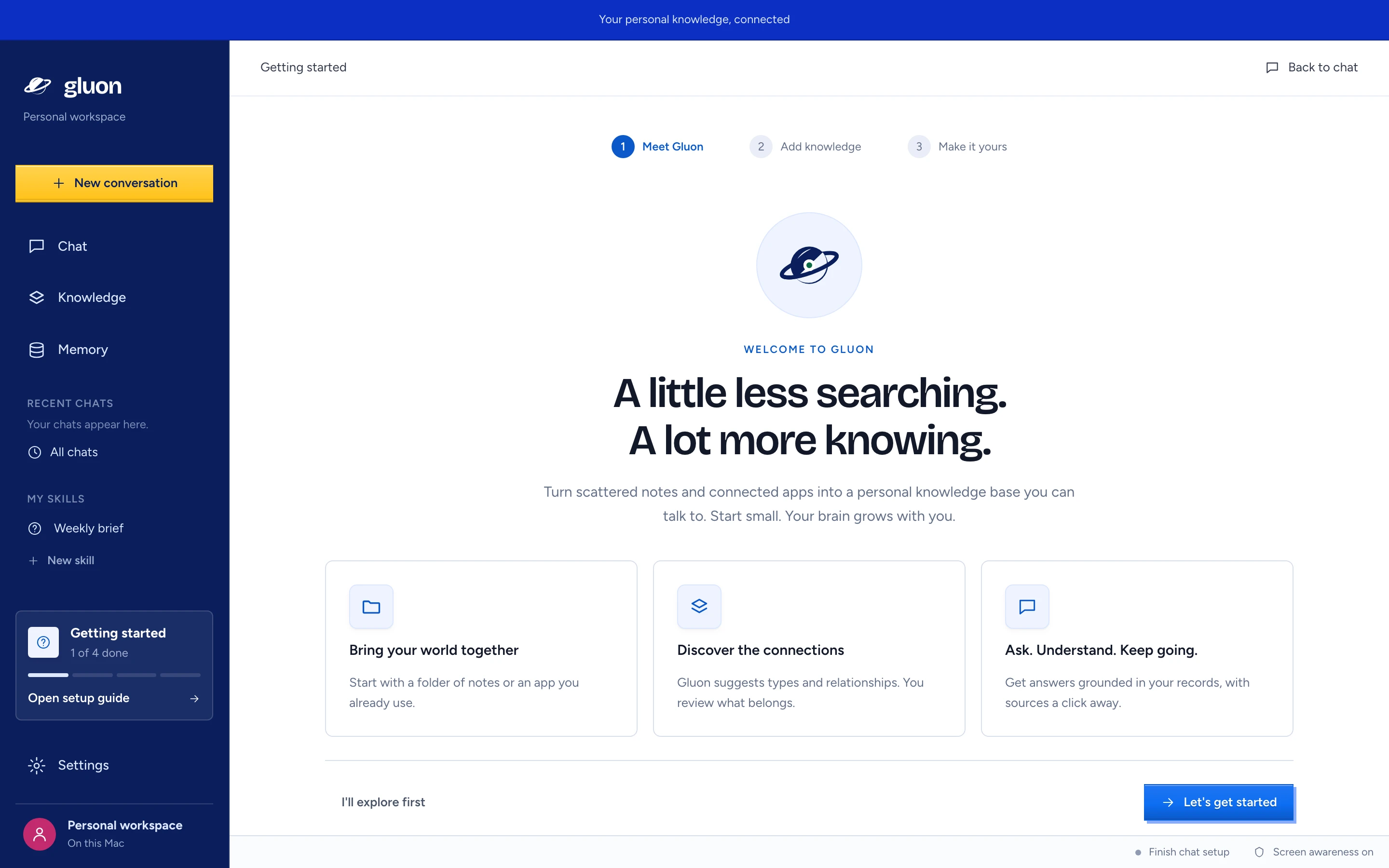
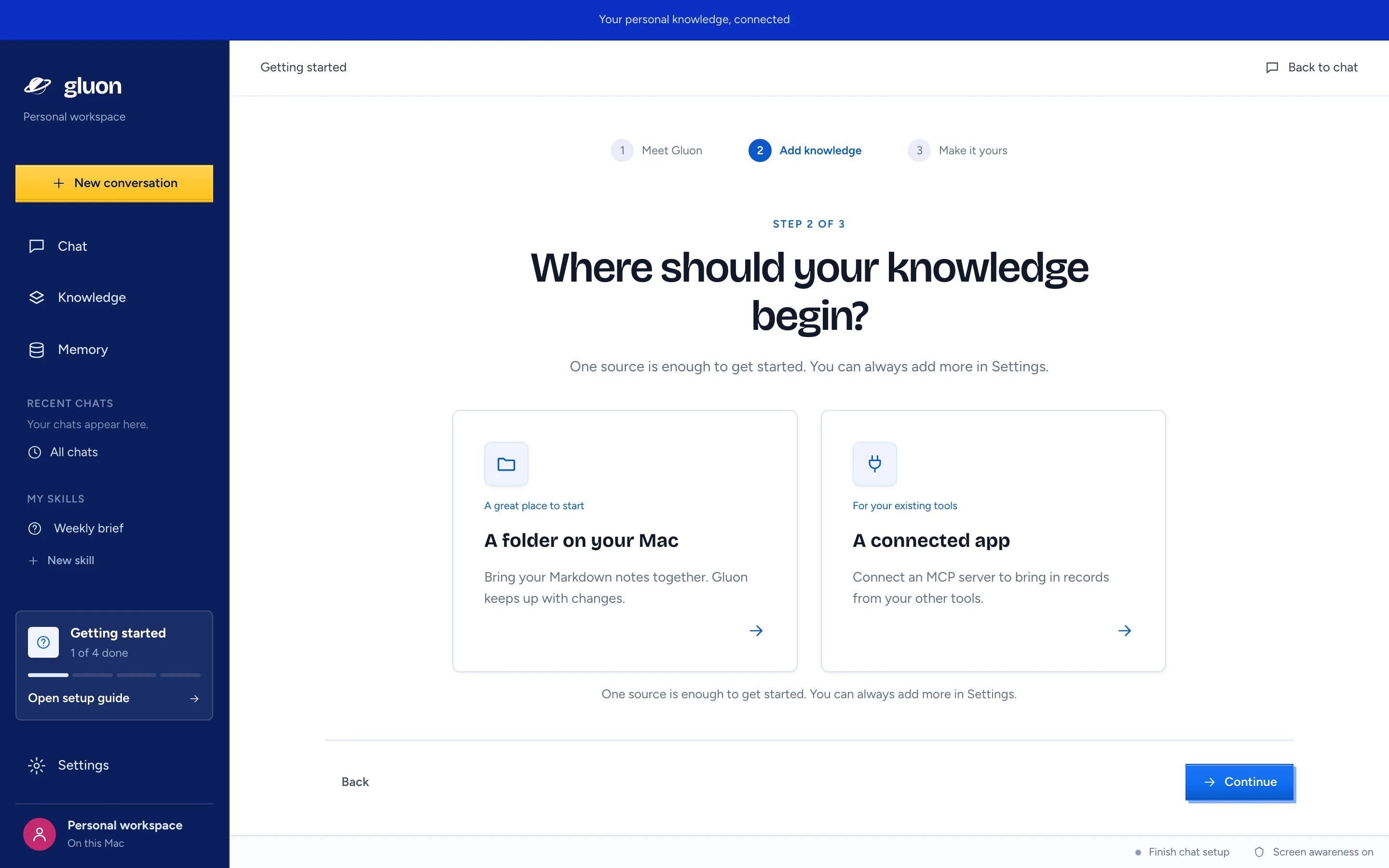
The guide opens on the first start, until you finish or skip it. The three tabs at the top show where you are; each is a button, so you can jump between steps.
- Meet Gluon. Read what Gluon does, then press Let's get started. Press I'll explore first to skip the guide.
- Add knowledge. Pick A folder on your Mac (Markdown notes) or A connected app (an MCP server). The dialog is the same as on Sources, and its button reads Connect and read. Gluon adds the source and reads it at once. While it reads, the guide says "Reading your source…" and its buttons are off. If the read fails, the source stays added: the guide says so, and Manage sources opens Sources to try again. One source is enough; press Continue.
- Make it yours. The card says whether your chat model is ready ("Your chat model is ready") or not ("Choose a model to start chatting"). Choose a model opens AI connections. Screen awareness is explained here and stays off: adding a source does not turn it on. Under it, Getting started says whether you can ask now ("Ready to answer: you can ask now.") and lists four steps (below). Press Go to chat.
Go to chat and I'll explore first both mark the guide as finished. The next start opens Chat. If Gluon cannot save that choice, a message says the guide may appear again; you can still use the app.
Getting started
Four steps, each adding one thing. The first one not done leads, with a filled button; every step stays open to you.
| Step | Done when | Button |
|---|---|---|
| Connect a source | a source is ready to answer (it has records, or a tool is on) | Add a source |
| Get a first answer | a conversation is kept on the Mac | Ask now |
| Add a skill | you have a skill for answering | Open skills |
| Look at memory | you opened Memory once | Open memory |
Asking works once a source is ready and a chat model is chosen; the other two steps are optional.
Open the guide again
- Settings › Getting started (the card opens the guide).
- Until chat is ready to answer and all four steps are done, the sidebar shows a Getting started card ("n of 4 done") with Open setup guide.
The window
| Part | What it does |
|---|---|
| New conversation | starts a new conversation in Chat. On Chat it asks first, because it clears the conversation and the draft |
| Chat | the home screen: ask questions, see discoveries |
| Knowledge | the knowledge map and what Gluon discovered. A number beside it counts discoveries waiting for you |
| Memory | what Gluon keeps on this Mac: correct it or wipe it |
| Recent chats | the latest five conversations; All chats lists every one, with search and Delete (the trace) |
| My skills | your skills for answering; pick one to use it in Chat (Skills) |
| Settings | the cards below |
| Name and "On this Mac" | bottom left. Press it to open Account. It reads Linked to host instead of On this Mac when you sign in |
| Top bar of each screen | the screen's name (All settings inside a settings card), and Back to chat. On Chat it shows how many sources are connected |
| Bottom bar | the state of Gluon and of screen awareness (below) |
Chat keeps your conversation and your unsent question while you open Settings or Knowledge. Come back to Chat and both are there. Every conversation is kept on the Mac; reopen it from Recent chats or All chats. Signing in as someone else, or signing out, starts a new conversation.
Right-click opens Gluon's own menus where they apply, such as Open, Rename and Delete on a chat. Elsewhere right-click does nothing; inside a text field, or over selected text, you get the usual menu with Copy, Paste and spelling.
Settings
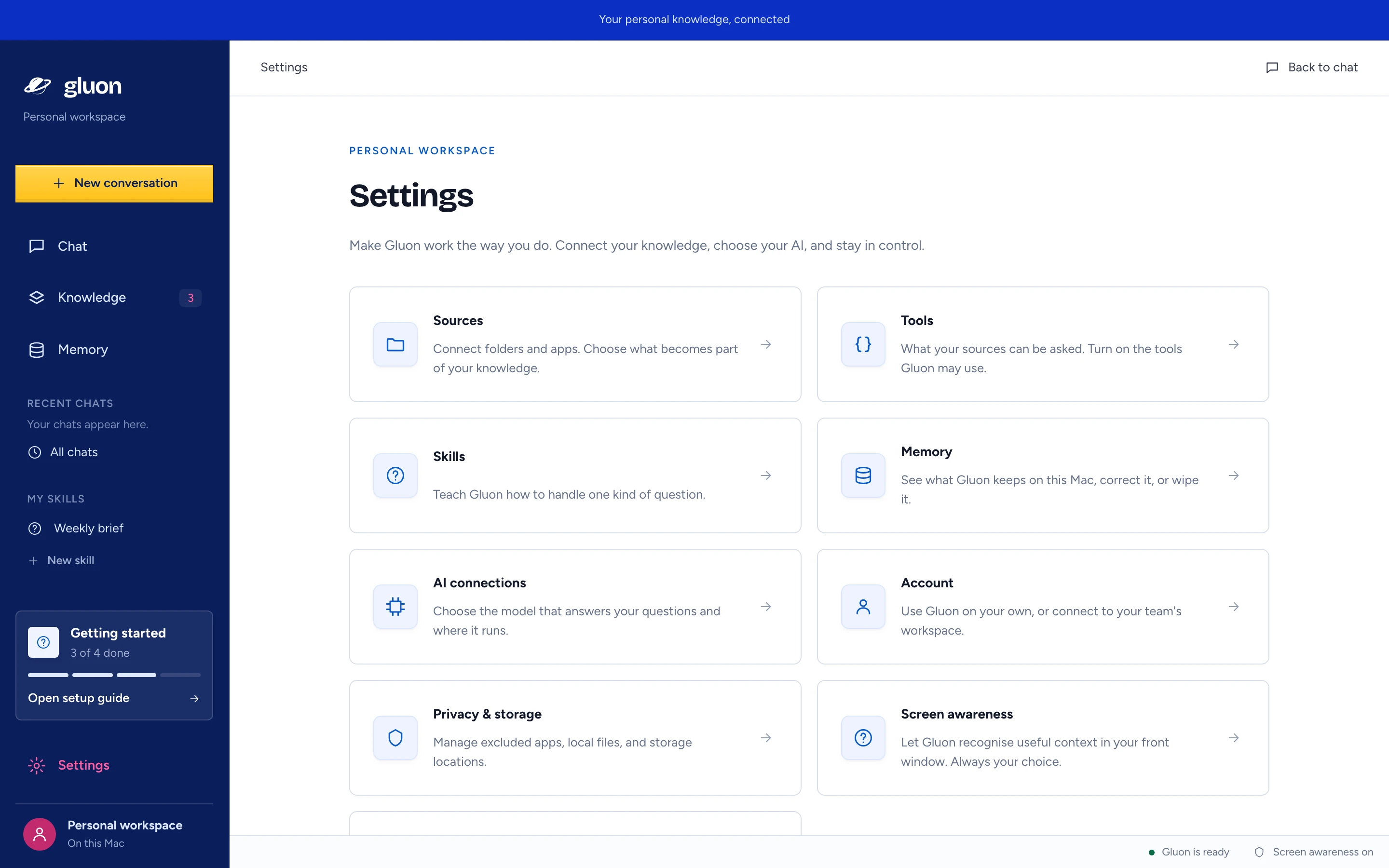
Settings shows nine cards. All settings at the top left of a card returns to them (not on Memory and Getting started, which have their own place in the sidebar). Command-comma (menu Gluon › Settings…) opens Settings from anywhere.
| Card | Opens | Page |
|---|---|---|
| Sources | folders, apps and databases Gluon reads | Add sources |
| Tools | what your sources can be asked; turn tools on | Add sources |
| Skills | how Gluon handles one kind of question | Skills |
| Memory | what Gluon keeps on this Mac | Memory |
| AI connections | the model for each job, and where it runs | Choose the AI that answers and discovers |
| Account | local use, or your organisation's server | Link Gluon Desktop to your Gluon server |
| Privacy & storage | apps never watched, and where files are kept | Set up screen awareness and its controls |
| Screen awareness | the helper, permissions and the Watching switch | Set up screen awareness and its controls |
| Getting started | the welcome guide | this page |
Read the bottom bar
The bottom bar has two buttons. The left one is about Gluon, the right one about screen awareness. Each opens the screen where you fix it. While Gluon works in the background, a third item shows left of them (below).
| Left button | Meaning | Opens |
|---|---|---|
| Connecting to Gluon… | the first check is running | Screen awareness |
| Gluon is ready | a chat model is chosen and a source is ready to answer | AI connections |
| Finish chat setup | no chat model yet, or no source ready to answer yet | AI connections |
| Local service unavailable | the service inside Gluon does not answer; restart Gluon, and see the log in ~/Library/Logs/com.gluon.desktop | Screen awareness |
| Right button | Meaning |
|---|---|
| Screen awareness off | Watching is off, or the helper reports it is off. Nothing is read |
| Screen awareness unavailable | Gluon Assistant is not running, or its state cannot be read |
| Screen permission needed | Watching is on, but macOS Accessibility is not granted to Gluon Assistant |
| Screen awareness on | Watching, or an offer is showing |
| Screen awareness paused | Watching is on and something stops it, such as screen sharing. The blob names the reason |
The left button opens AI connections whenever the service answers (also on Finish chat setup), and Screen awareness while it does not. The right button always opens Screen awareness. See the assistant blob for what each reason means.
See what Gluon is doing in the background
Gluon imports sources, reads them for discoveries and indexes passages on its own. While one of these runs, the bottom bar shows a turning circle and one line for the most important one, with "+n more" when more run. When nothing runs, the item is gone. With reduced motion turned on in macOS, the circle stands still. Click the item to see every run, each beside the logo of the source it reads.
| Line | What runs |
|---|---|
| Importing source · n read (or n of m) | an import, started by you or by the automatic import every 30 minutes |
| Installing the document reader · n% | the one-time install of the reader for Word, PDF and PowerPoint files |
| Reading the tables of source | a database source's tables are read for discoveries after a sync |
| Discovering in source · n left | the local model reads the records of an import for discoveries |
| Reading attachments · n left | attachments read before the document reader was installed are read again |
| Indexing · n of m passages left | passages wait for the search model, so chat finds them by meaning |
Press the item to see every run in a list, with a thin bar where the end is known. Open beside a source opens Sources. A source whose last import stopped shows here too, with the reason. Escape or a press outside closes the list.
Develop
Recognition Playground is for trying the recogniser; it is not part of daily use. Open it from the menu bar, Develop › Recognition Playground, or from Settings › Develop (a collapsed section; press Recognition playground). See Try the recogniser in the Playground.
Other states
- Connecting to Gluon… in the top of the window: the app is reading its first state.
- Could not check for discoveries, on Chat: the list of discoveries did not load. Press Try again.
- Open this in the Gluon app on a screen: the page is open in a browser tab, which has no local service.