Screen awareness: a small floating blob that comes with Gluon Desktop. Helper app: Gluon Assistant, inside the app. When enabled, it reads the front window, recognises records your pack knows (a supplier, a contract number) and offers help with them. Controls: Settings › Screen awareness, Settings › Privacy & storage, and the Gluon Assistant menu in the menu bar. Reading state: unavailable until Watching is on and macOS Accessibility is granted. It is off until you switch it on: connecting a source in the welcome guide does not turn it on.
What your administrator sets up
Only when your organisation manages your Mac:
- The app itself, installed by MDM as
/Applications/Gluon.app, with Gluon Assistant inside it. The app registers the assistant as a login item. - A configuration profile with the managed preferences
packKey(the key your Mac checks the signed pack against) anddenyApps(apps the assistant never reads). The profile carries no server address: you enter it yourself under Settings › Account. - Optionally, a privacy profile that allows Accessibility for Gluon Assistant. Screen Recording always stays your choice.
- On the server: a Capability deployed on the
desktopchannel that names the decision model. With more than one desktop Capability, the server answerschoose-capability.
Watching can't be switched on for you. The assistant reads a Watching value forced by MDM as off.
Link to your server, or stay local
Gluon Desktop works without a server. To link it, open Account, enter your organisation's Gluon address in Server and press Sign in; your browser finishes the sign-in. The block at the bottom left of the sidebar then says your name and Linked to host instead of On this Mac. The page Link Gluon Desktop to your Gluon server covers the two modes, signing out and the lease.
Linked, your opt-in to observation is recorded on the Gluon server against your account; the admin console shows it as Opted in, and the app has no switch for it in this release. Until you opt in, your pack holds only object types and field names, so the assistant recognises no particular record.
Turn the assistant on
- Open Settings › Screen awareness in Gluon Desktop (or press Screen awareness … in the bottom bar). The first row says whether Gluon Assistant is running. If it says Unavailable, allow it in System Settings › General › Login Items.
- Grant Accessibility. Choose Accessibility permission… in the Gluon Assistant menu and allow Gluon Assistant in System Settings › Privacy & Security › Accessibility. Until you do, the screen shows Grant Accessibility, the blob says "Accessibility: Not granted".
- Switch Watching on in the Gluon Assistant menu in the menu bar (or the blob's own menu). This is the only place it is switched on. The switch on the Screen awareness screen and under Privacy & storage shows the state and can switch it off; while Watching is off it is disabled and tells you to use the menu.
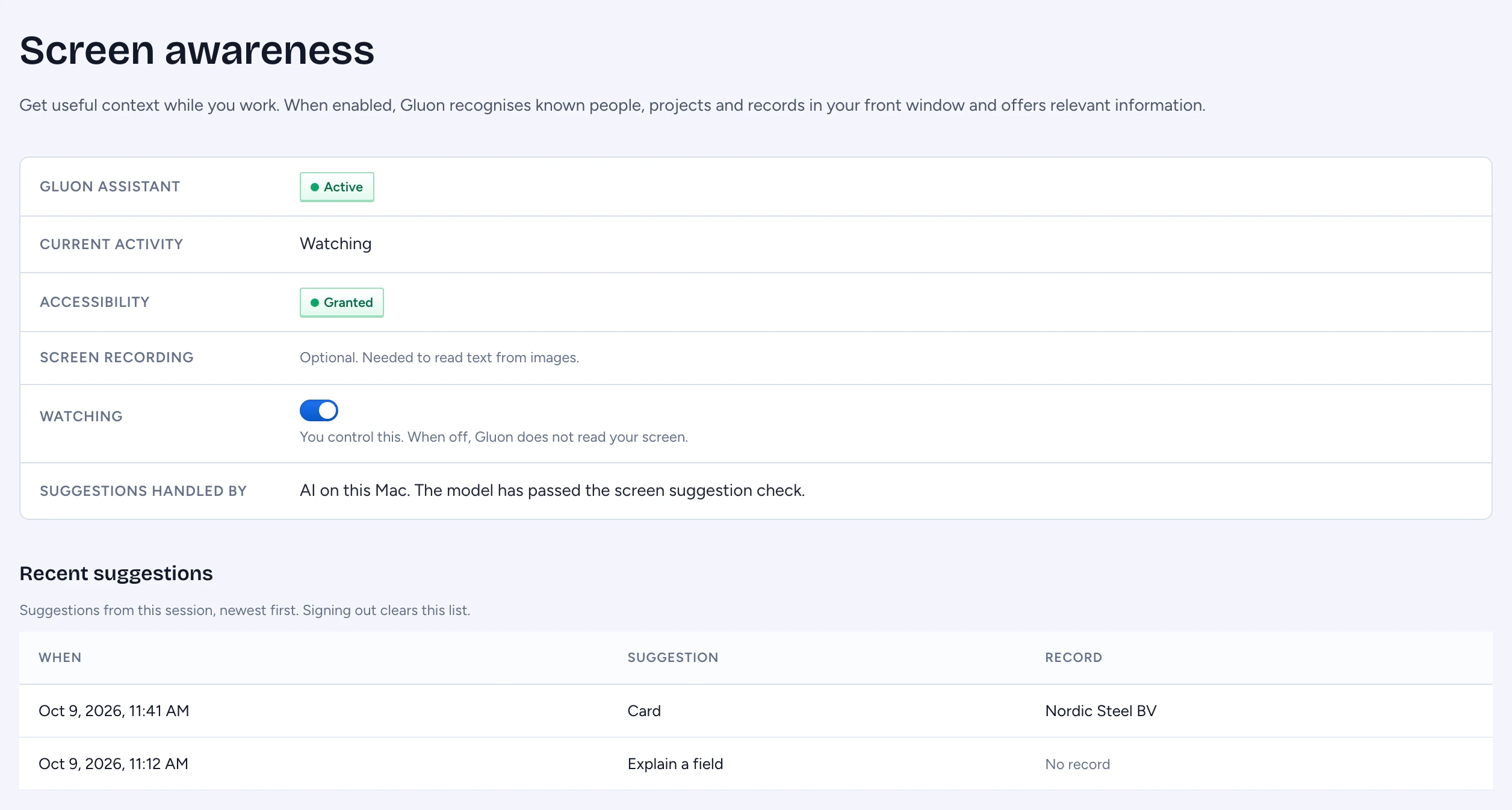
The Screen awareness screen then shows:
| Row | What it says |
|---|---|
| Gluon Assistant | Active, or Unavailable |
| Current activity | what the blob shows now: Watching, Off, Paused, an offer, or the reason it stopped |
| Accessibility | Granted, or Not granted |
| Screen Recording | Granted, or "Optional. Needed to read text from images." |
| Watching | the switch, on only from the Gluon Assistant menu. On: "You control this. When off, Gluon does not read your screen." Off: it says where to switch it on |
| Suggestions handled by | where the next decision is made: AI on this Mac by a model that passed the Screen suggestion check, your System One server, your organisation's AI service, or built-in rules on this Mac |
Recent suggestions lists the assistant's last 10 offers in this session, newest first, with the record they were for. The list is wiped when you sign out. To use AI-powered suggestions, choose and check a model for Offer help on screen under AI connections.
Keep it away from apps
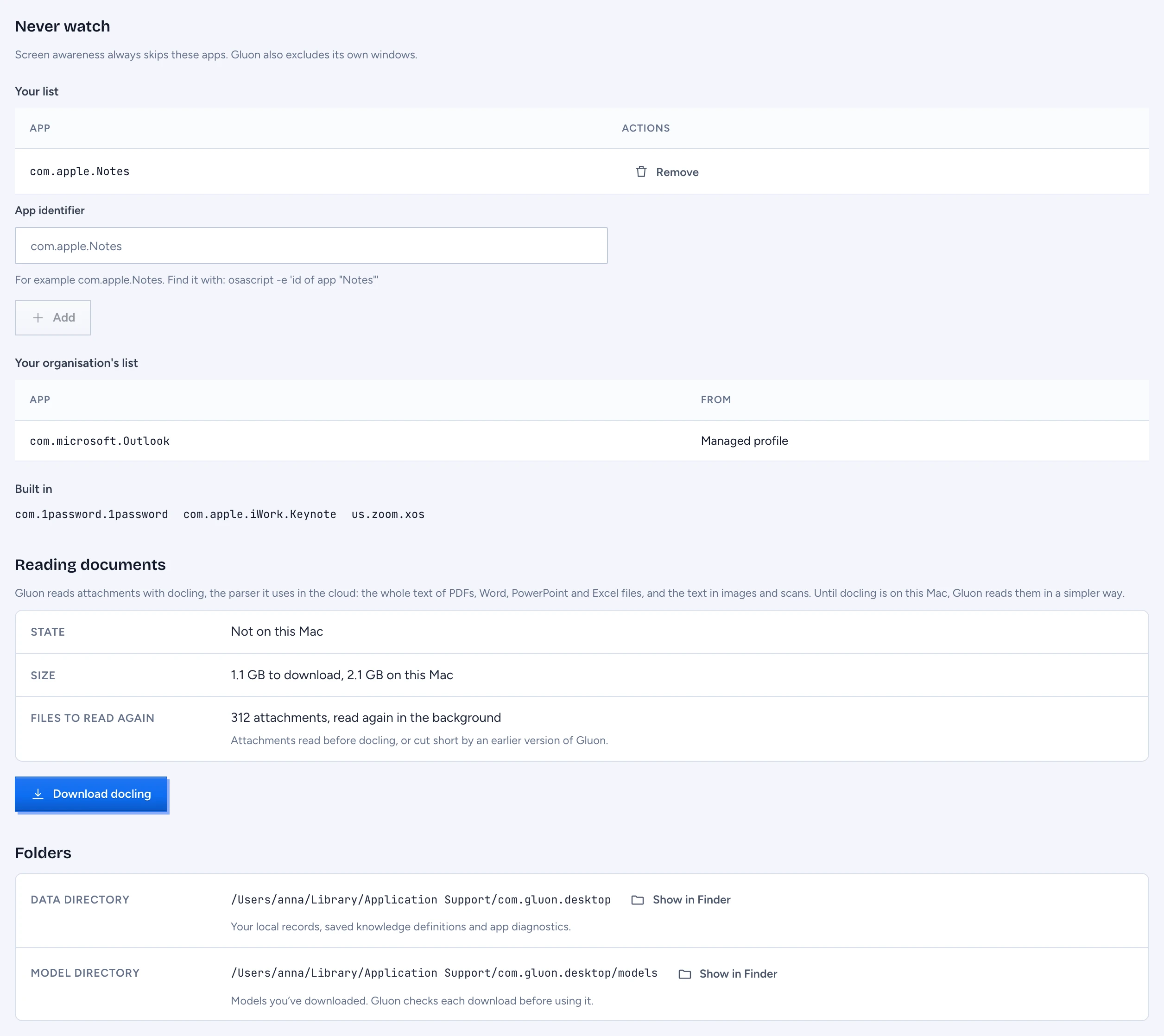
Open Settings › Privacy & storage › Never watch. The assistant reads nothing in any app on these lists, and never reads Gluon itself.
- Your list. Type an app's identifier, its bundle id (for example
com.apple.Notes), and press Add, or choose Never watch the app in front in the Gluon Assistant menu. Remove takes an app off again. - Your organisation's list. Apps from the managed profile and, while linked, from the server. You can't change it here.
- Built in. Password managers, conferencing apps and Keynote, among others. Shown while Gluon Assistant is running.
Where Gluon Desktop keeps its files
Settings › Privacy & storage › Folders shows the data directory (the database, the GOL folder, the log and the service file) and the model directory (models downloaded under AI connections). Show in Finder opens each one.
Read documents with docling
Settings › Privacy & storage › Reading documents downloads docling, the parser Gluon uses in the cloud, so the attachments of a source are read the same way on your Mac: the whole text of PDFs, Word, PowerPoint and Excel files, tables with their headers, and the text in images and scans.
Gluon asks you itself: once a source has attachments it could read only in part, a dialog says how many, what docling reads and the size. Press Download 1.1 GB to start, or Not now; it asks again after a week, and the download stays here in Settings.
- Press Download docling. The dialog says the size: about 1.1 GB to download and 2.1 GB on this Mac. Press Download 1.1 GB.
- The state shows the step it is on, such as "Installing: getting the models", and how much has landed. It takes a few minutes. Every file is checked against the version this app expects before it is used; a file that does not match stops the install, and nothing is left behind.
- When the state says On this Mac, works offline, new attachments are read with docling. Files to read again counts the attachments read before, in the simpler way or cut short by an earlier version of Gluon; they are read again in the background, 20 at a time, and only while your Mac is on its charger and not in Low Power Mode.
Docling runs only on your Mac, only while it reads, and stops after five minutes without a file. Remove docling frees the space; text already read stays. It needs a Mac with Apple silicon; on other Macs the section says so and attachments are read in the simpler way.
What it reads and what leaves your Mac
The assistant waits for a second without typing, then reads the focused window through the Accessibility API: up to 600 elements in 300 milliseconds. Password fields are skipped whole, label and value. It reads nothing while the screen is locked, while another user is active, while your screen is shared, or in an app on a deny list.
The text it reads goes to the app's local service on your Mac and nowhere else. Linked, what goes to Gluon is vocabulary from your pack: field names, a few fixed categories and the id of the record it thinks you're on; text leaves only when you send a question or a cross-check yourself. Not linked, nothing leaves the Mac. What left this Mac… in the Gluon Assistant menu lists every request sent this session, up to 200.
Screen Recording is only for apps the Accessibility API can't read. With it, the assistant hashes a small grey thumbnail to notice changes, or reads text with on-device OCR, and keeps no image. Without it, those apps show as "App: Not supported".
Pause or stop
- Switch Watching off. The blob turns grey and still.
- Add the app to your list under Privacy & storage › Never watch.
- Quit Gluon Desktop (⌘Q, then Quit). The assistant quits with it, and Quit Gluon in the assistant's menu quits both too. Watching stops until Gluon opens again.
- Sign out under Account, or opt out on the server. With Gluon Assistant running, the bottom bar reads Screen awareness off until Watching is on; with Watching on and Accessibility missing it reads Screen permission needed. Screen awareness unavailable means the helper or its status cannot be read.
If your administrator pauses the assistant, the blob shows "Assistant: Disabled" with the reason they gave.
If the blob shows something else
| Blob says | Meaning |
|---|---|
| Accessibility: Not granted | grant Accessibility to Gluon Assistant |
| Open Gluon | Gluon Desktop is not running |
| Connecting | linked, waiting for the server's list of apps never to watch |
| Not connected | linked, and the server has been silent for 45 seconds; the app dials again |
| Assistant: Disabled (reason) | an administrator paused it |
| Pack: Not loaded | there is nothing to recognise yet |
| Pack: Expired | the signed pack passed its 24-hour expiry; a new one is being fetched |
| Screen sharing: Unknown | the sharing check isn't available, so reading stops |
| Assist: Paused | you reached the daily allowance, or the decision service failed |
| Screen sharing: Active | your screen is shared; the bottom bar reads Screen awareness paused |
For support, choose Save diagnostics… in the Gluon Assistant menu. It saves a zip with versions, permissions and the last 200 log events reduced to a fixed list of fields. You preview it and send it yourself.