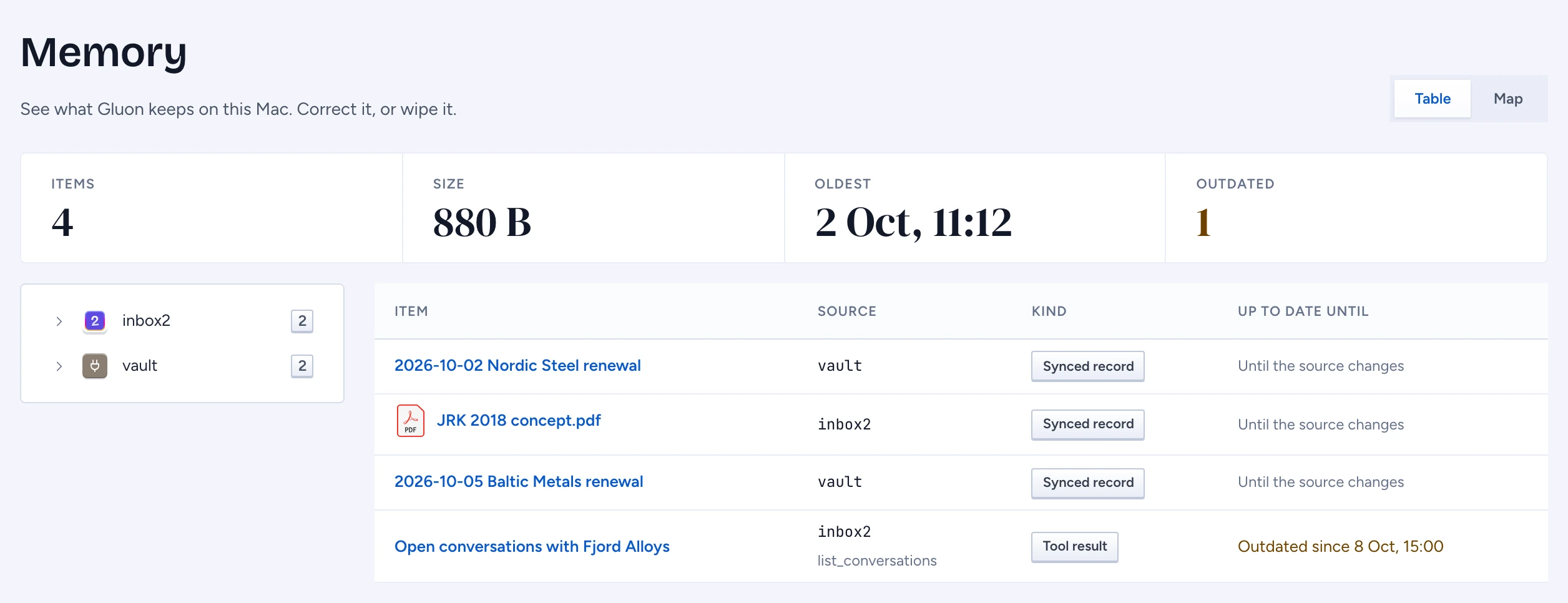
Memory: everything Gluon keeps on this Mac. Two kinds of item: the synced records your sources brought in (notes, mail, attachments), and what Gluon remembered from tools, such as the answer of a tool it called. Each item says where it came from, when it was observed and how long it holds. Nothing here leaves the Mac.
Open it from Memory in the sidebar, or from Settings.
Find an item
The strip at the top counts the items, their size, the oldest one and how many are past their window. The tree groups items by source, then by tool or kind; pick a node to narrow the table. The table shows each item, its source, its kind and until when it is up to date; open an item for when it was read and how often answers used it. Once the list has more than 12 items, filters by kind and Outdated only appear.
| Kind | What it is |
|---|---|
| Synced record | A record a source brought in. It changes where it lives, not here. |
| Tool result | What a tool answered, kept for as long as its source allows. |
| Your correction | An item you corrected. The original stays beside it. |
| Derived fact | Something Gluon worked out from other items. |
See your notes as a map
Press Map at the top right (Table goes back). The notes of your folder sources, such as an Obsidian vault, show as a network: each note is a square, coloured by its type, and each link between two notes is a line. Notes with many links are drawn larger. Type in Find on the map to jump to a note, or press List for every note by type; press a note to see what it links to, and press Open to read it in the Sheet. The views across the top arrange the same notes in other ways; Timeline puts each note at its date. Mail and other app sources are not on the map: their links only say which conversation a message belongs to.
If no folder source is connected, the map says No linked notes yet.
Open an item
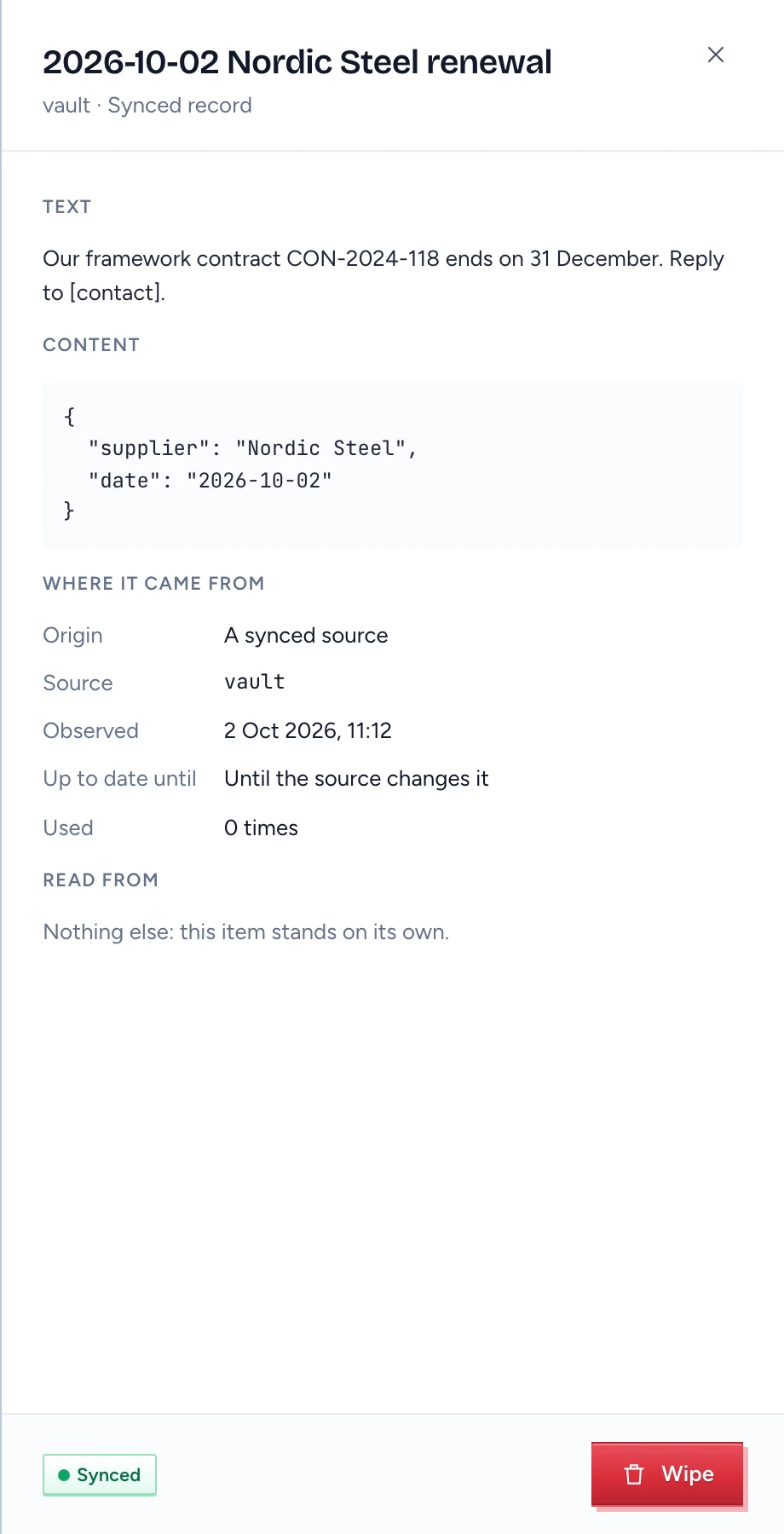
Press an item's title. The Sheet shows its Text, its Content, Where it came from (the source, the tool and its arguments, when it was observed, until when it holds, how often it was used) and what it was Read from. An Outdated item is read again before Gluon relies on it.
Correct an item
Press Correct, change the text and press Save correction. The item becomes Your correction, the original stays beside it, and answers say you corrected it. Your correction overrides what the source returns: reading the source again never replaces it. When its window ends, Gluon reads the source again, keeps your correction and compares the new read with what you corrected. If the source now says something else, answers say "the source says something else since; the correction is kept", so you can correct it again or wipe it. A synced record cannot be corrected here: change the note or the app it came from, then read the source again.
Wipe
- One item: press Wipe in its Sheet and type its name to confirm.
- A whole source, or one kind in it: pick it in the tree, press Wipe everything from the source (or Wipe the kind) under the tree, and type the source's name.
Wipe removes items from this Mac: a synced record goes with its search index, and answers that read it are marked out of date. Reading the source again brings its records back, so remove the file or the source first if it should stay gone. Your corrections and tool results that you wipe are gone.
Other states
- Nothing kept yet: add a source and read it; its records show up here.
- Memory did not load: press Try again.
- Open this in the Gluon app: the page is open in a browser tab, which has no local service.